

Connect to your server
The first screen asks where your world database is. Fill it in once; the app remembers it and offers it again next time.
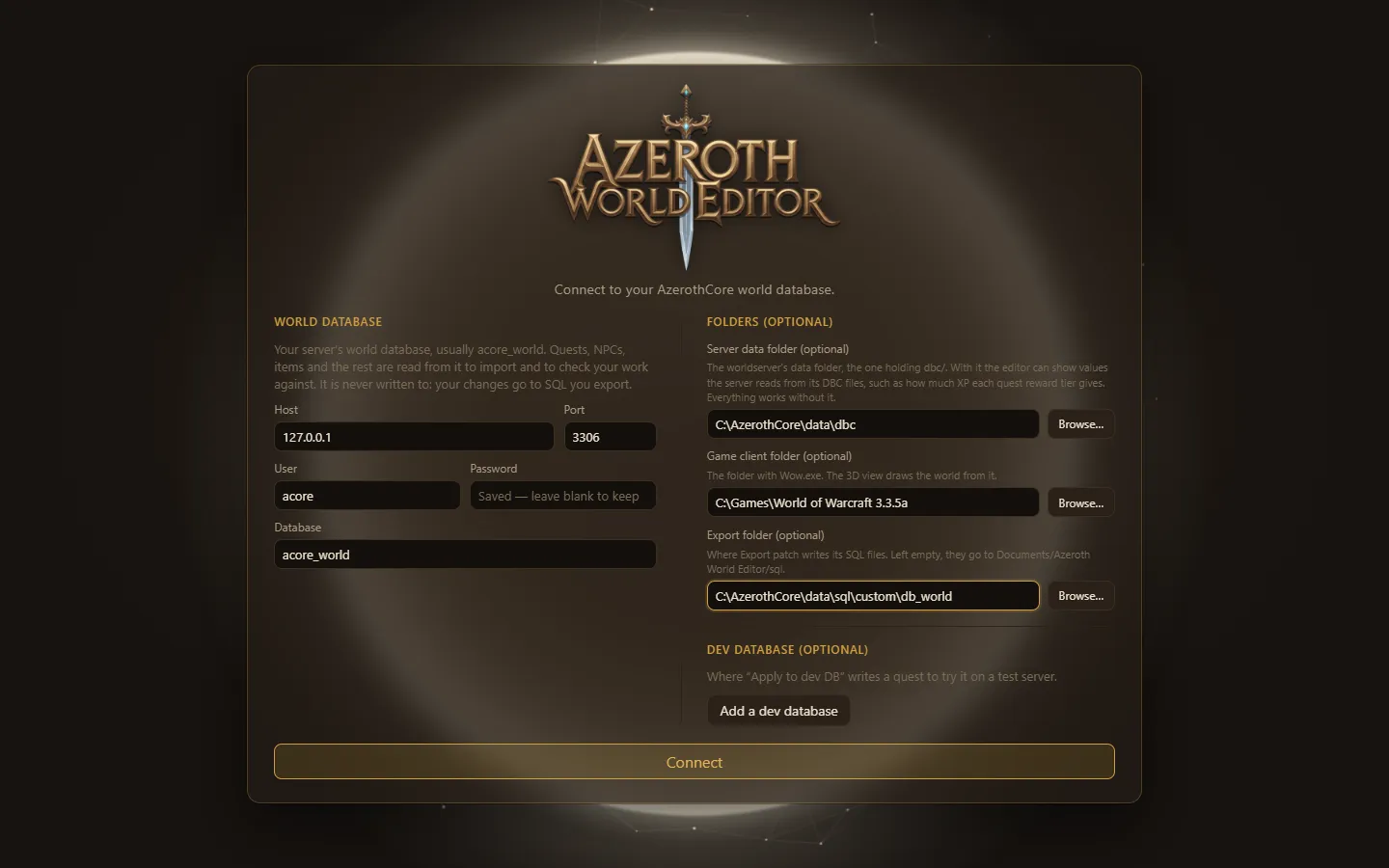
World database
Section titled “World database”Your server’s world database, usually acore_world. Quests, NPCs, items and the rest are read from it to import and to check your work against. It is never written to: your changes go to SQL you export, or to a dev database you add yourself.
- Host and Port: where MySQL runs, for example
127.0.0.1and3306. - User and Password: a MySQL user that can read the world database. Read-only rights are enough.
- Database: the world database’s name.
The password is stored encrypted on your computer. Once one is saved, the field reads Saved — leave blank to keep.
Folders (optional)
Section titled “Folders (optional)”- Server data folder: the worldserver’s data folder, the one holding
dbc/. It lets the app show XP values for reward tiers, search spells and creature or object models by name, and snap spawns to the ground in the World. Everything works without it; those parts fall back to typing IDs. - Game client folder: the folder with
Wow.exe. The World is drawn from it in 3D. - Export folder: where Export patch writes SQL files, such as your server’s
data/sql/custom/db_world. Left empty, they go toDocuments/Azeroth World Editor/sql.
Use Browse… to pick a folder instead of typing it.
Dev database (optional)
Section titled “Dev database (optional)”Add a dev database to turn on Apply to dev DB, which writes a quest straight into a test server’s world database so you can try it in game. Use a copy of your world database on a test server, never your live one.
Connect
Section titled “Connect”Choose Connect. The app opens on the World: the game world in 3D, drawn from your game client, where you last left it (Northshire the first time). The first time a project opens there, a welcome offers a place to start. The bar across the top shows what the app reached: Connected: database, plus Server data and Game client when those folders opened. Without a game client folder the World says so and offers Settings; your quests are always in the Quests dock, opened from the top bar.
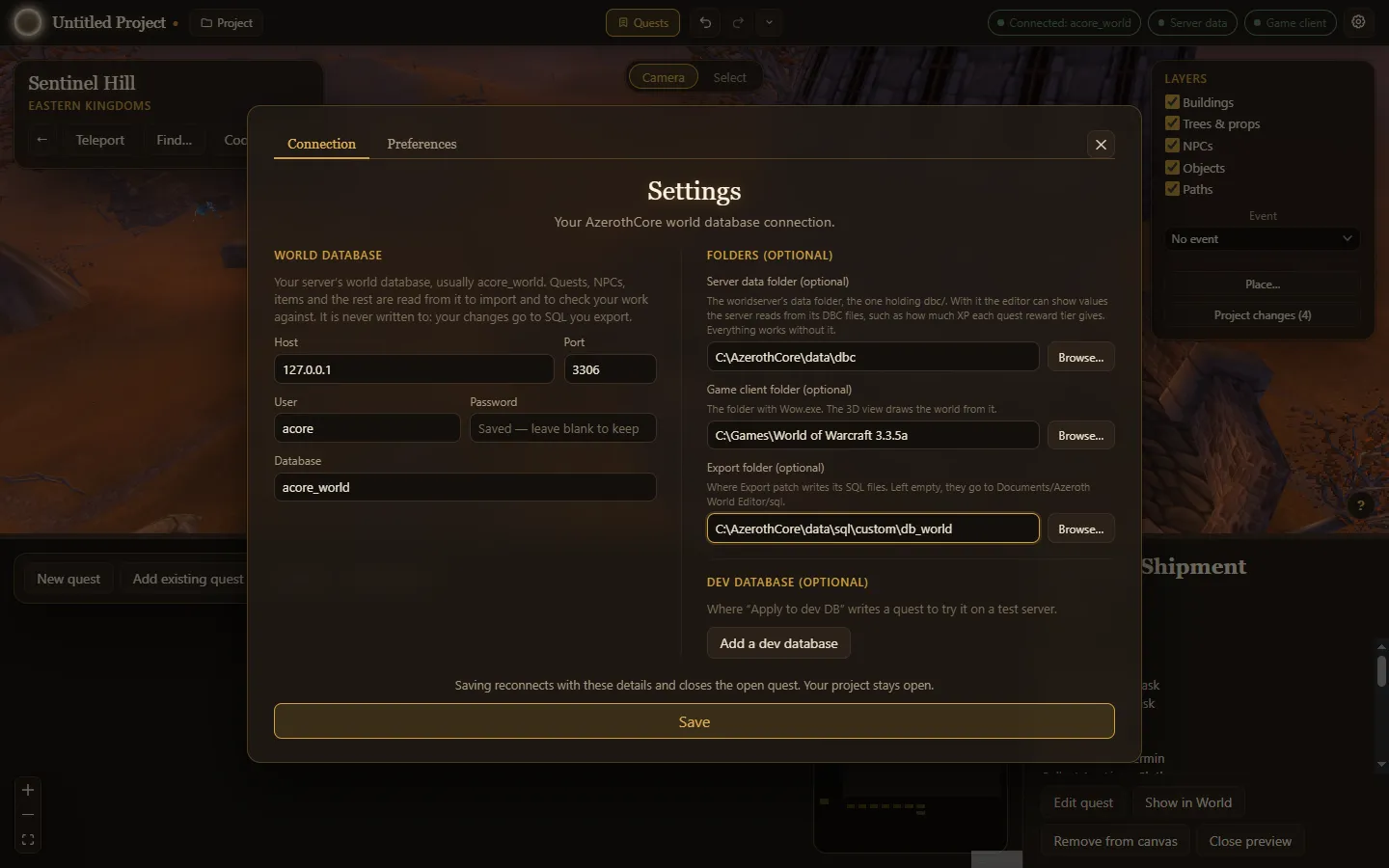
To change any of this later, choose Settings (the cog) at the right of the top bar. Saving there reconnects with the new details and closes the open quest; your project stays open.
Next: your first quest.