

The World in 3D
The World is where the app opens and where most work happens: the game world in 3D, drawn from your own game client. Walk it, place NPCs and objects that already exist, move them, draw the paths they walk, and tie them to the quest you have open. Changes to spawns that belong to no quest are kept as world changes and exported as a patch of their own.
Before and after: fixing a route
Section titled “Before and after: fixing a route”The Stormwind Guard who walks between Goldshire and Northshire Valley follows the stock route, which leaves the road outside Goldshire and cuts across the grass. A project that does nothing else drags that stretch back onto the road. Select the guard and his route is drawn; with Trees & props hidden, the whole of it shows.
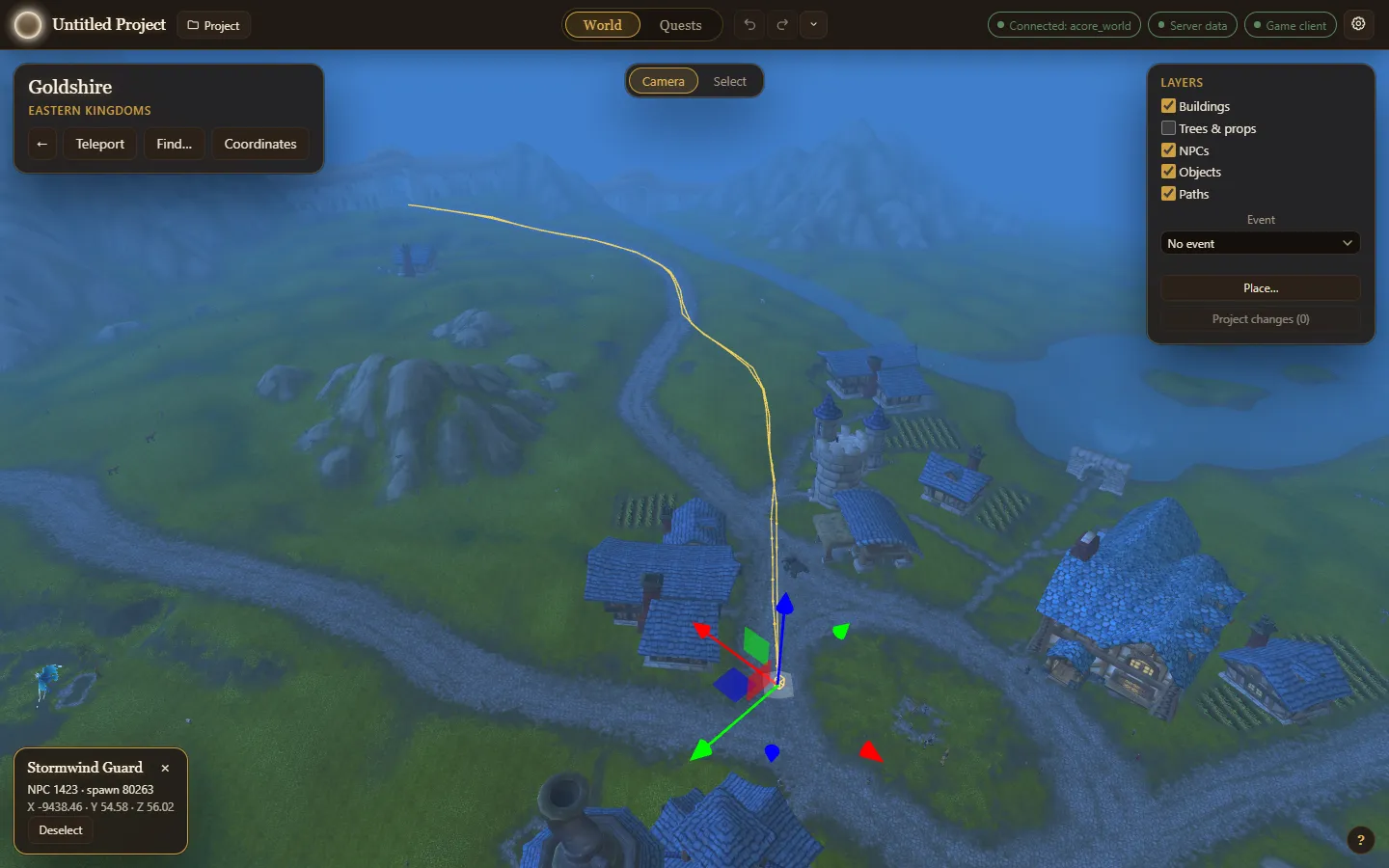
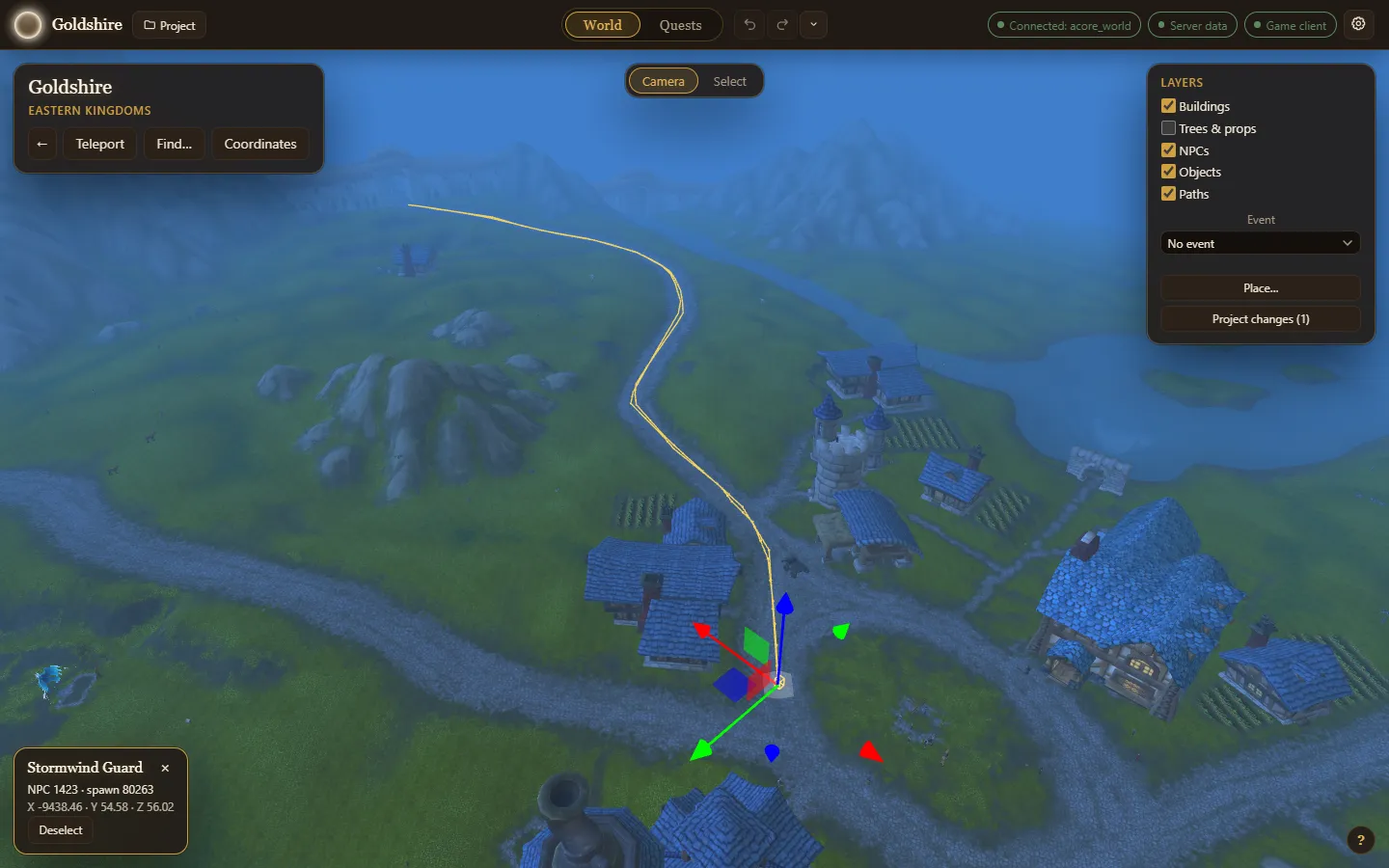
The edit is one entry in Project changes, and Export project patch writes it as the route’s new points, with a revert patch that puts the stock route back. Every other spawn and route stays as the database has it.
The World needs the game client folder, set when you connect. Without it the tab says so and offers Settings.
Find your way
Section titled “Find your way”- The first time a project opens here, a Welcome offers well-known places to start, Find an NPC or object, Start a quest and Just look around.
- The card in the top left names the area under the camera. Teleport lists named places, with a box to find a place or zone. Find… searches NPCs and objects by name or ID and lists every spawn of the one you pick, nearest first; Go takes the camera there and selects it. Coordinates takes a map and an X, Y and Z. The map list holds the four continents, then the dungeons, raids, battlegrounds and arenas your game client has terrain for, grouped by kind; a quest whose NPCs or objects are in one of them opens that map when you show it in the World. A dungeon the client stores as a single building (Blackrock Depths, the Stockade and others) is drawn as that building, with its NPCs and objects. A Transports group lists the ships, zeppelins and gunships. Opening one shows the vessel docked on its continent with its route drawn as a line and its stops marked, and its NPCs and objects standing on deck; a route picker appears when the map has several routes, and a stop picker moves the vessel to another stop. Passengers are edited like any spawn, and their positions are saved relative to the vessel. Every continent also draws the vessels that stop there, docked and with their passengers, so a zeppelin stands at each of its towers and an edit made at one is there at the other; the Transports layer hides them. The routes come from the game files and are read-only. The vessel itself never moves; its passengers walk the deck like any NPC when movement plays, and their walking paths are drawn on deck, though they can’t be edited there yet. A map the client has no files for is not drawn, and the World says which map a quest is on.
- The World opens where you left it.
- Back, the arrow on the place card, returns the camera to where it was before the last jump: a Teleport, a Find, a Go to, a Coordinates Go, or the move to a quest you opened. Press it again to go further back, up to 20 jumps, as in a browser. Alt+Left does the same while the World is shown. Its tooltip names the place it will return to (Back to the place), and it is off when there is nowhere to go back to.
Following a quest
Section titled “Following a quest”Open a quest in the Quests dock and the camera goes there: it flies to the quest’s giver, or its ender if it has no giver, or an objective if it has neither. If the quest has several, it picks the one nearest the camera on the current map. A quest with no spawns leaves the camera where it was, and a note says nothing of it is placed yet. If you move the camera while the World is still finding the quest, it stays where you put it. Back takes you to where you were.
Select a giver, ender or objective of the open quest in the World, by clicking it or going to it with Find…, and it is marked on the quest’s card in the dock, which lists the quest’s NPCs and objects. The camera stays where it is.
Two buttons do the same on demand:
- Show in World, in the quest editor and in the graph preview, takes the World’s camera to the quest.
- Go to name, beside each giver, ender and objective that names an NPC or object with a spawn, takes the camera to that one’s nearest spawn and selects it.
Used from inside the quest editor (or an NPC or object editor), either one steps the editor aside so you can see what the camera went to, and the World says what it is showing; Done brings the editor back.
Without the world database, both buttons find only your project’s own NPCs and objects and the spawns you moved or placed in the World. For anything else they say Needs the world database.
To move the camera:
| Input | Does |
|---|---|
| Right-drag | Look around |
| Left-drag | Orbit round the point under the cursor (Camera mode) |
| Middle-drag | Pan |
| Wheel | Move forward and back |
| W / S, A / D | Fly forward and back, strafe |
| Q / E | Turn left and right |
| Space / X | Rise and sink |
| Shift | Faster |
Keys work once the view has been clicked. The ? in the bottom right lists every control.
What is shown
Section titled “What is shown”The Layers card turns parts of the world on and off: Buildings, Trees & props, NPCs, Objects, Paths and Transports (the vessels docked on the continent, with the NPCs and objects aboard). Buildings are drawn with their furniture and props (the tables and barrels in an inn), which hide with them. With buildings hidden, clicks land on the ground under them.
Event draws the world during one game event: its NPCs and objects appear, and those it takes away go. No event is the everyday world; All events shows every spawn the database has.
Watch NPCs move
Section titled “Watch NPCs move”The bar at the top has Play and Reset. Movement is paused each time the World opens, so every NPC stands where it is placed. Play sets them going as the server would: an NPC with a path walks it, waiting at each point for as long as the point says and walking or running on as it says; an NPC with a wander distance roams inside its circle, pausing between steps. Each one faces the way it walks and its model walks or runs. NPCs standing on a vessel walk its deck the same way, and the vessel stays where it is. While they move the button reads Pause, which stops them where they are; Reset sends every NPC back to where it stands.
It is a preview only: nothing about it is saved or exported. Edits show at once: change a route or a wander distance and the NPC follows the new one, and move or turn an NPC and it starts again from its new place. An NPC whose route is shown (selected) goes back to where it stands and waits there, whether movement plays or is paused, so it and its route can be clicked and dragged; it sets off again once it is no longer selected and movement plays. Wandering NPCs follow the ground up and down hills, and NPCs on a path walk the heights of its points, stepping up onto the ground where it is a little above them. With the NPCs layer hidden they stay where they are. Speeds are the server’s defaults for walking and running.
Select and move
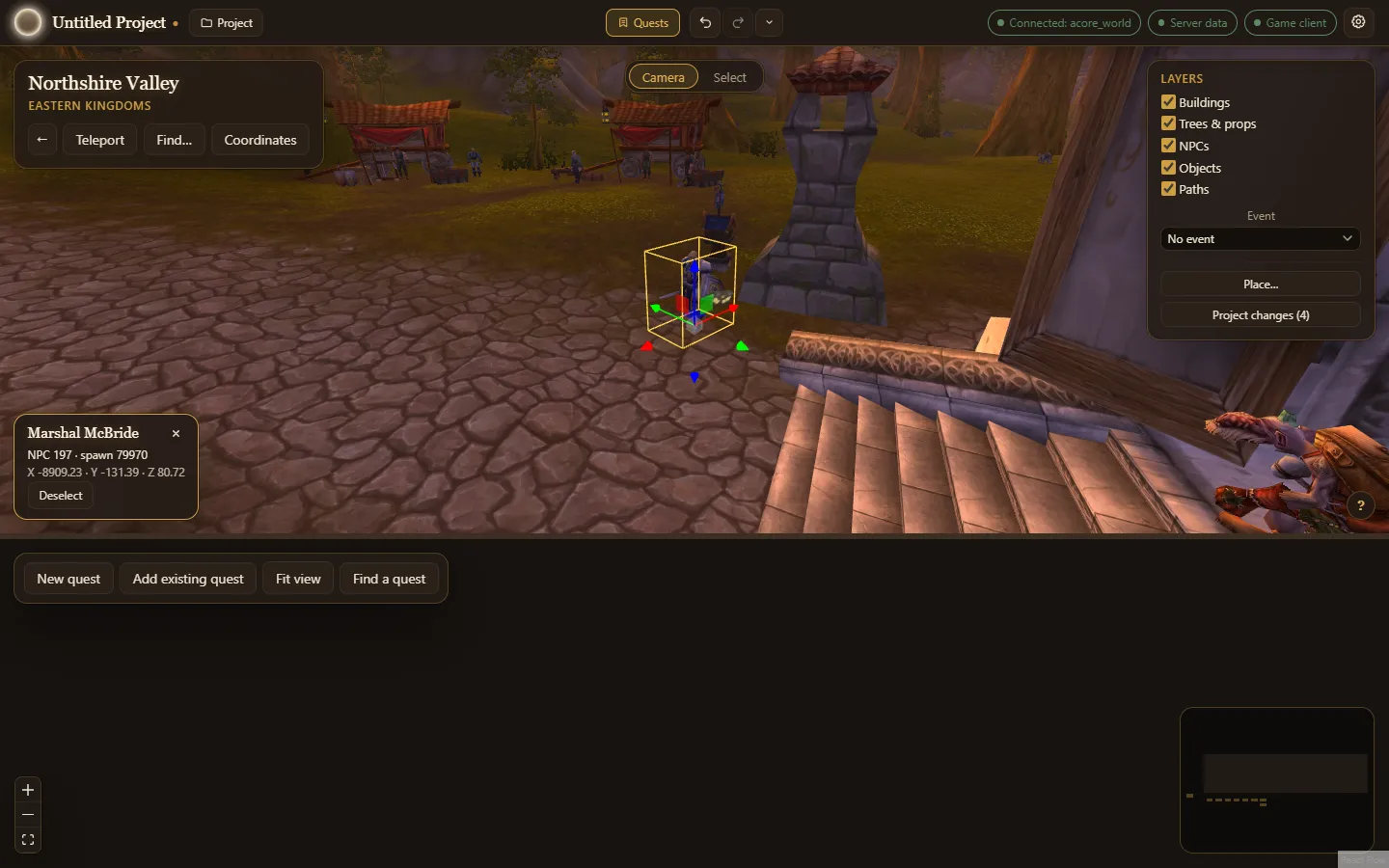
Section titled “Select and move”Click an NPC or object to select it. Its card shows what it is and where it stands. Selecting an NPC shows its route and wander circle.
The bar at the top switches between Camera and Select (Tab flips it). In Select mode a left-drag draws a box round what to select, Shift-click adds, Ctrl-click takes away, and Alt+drag orbits.
With something selected:
- G moves it and R turns it, with the handles on the selection. In Select mode the bar’s Move and Rotate buttons do the same and show which one is on. A moved spawn drops onto the server’s floor where you let go.
- On a shown route, click a point to pick it, Shift-click (Alt-click in Select mode) to add one, and Delete to remove the picked points. A route keeps at least two points.
- O turns on Falloff: nearby route points follow a move, less the further they are. [ and ] change its radius.
- Ctrl+Z and Ctrl+Y undo and redo, one whole move or turn at a time. They’re the project’s undo, so they also reach changes made elsewhere; see Undo and redo.
When a route is walked by more than one spawn, the app asks before it changes it for all of them.
The right-click menu
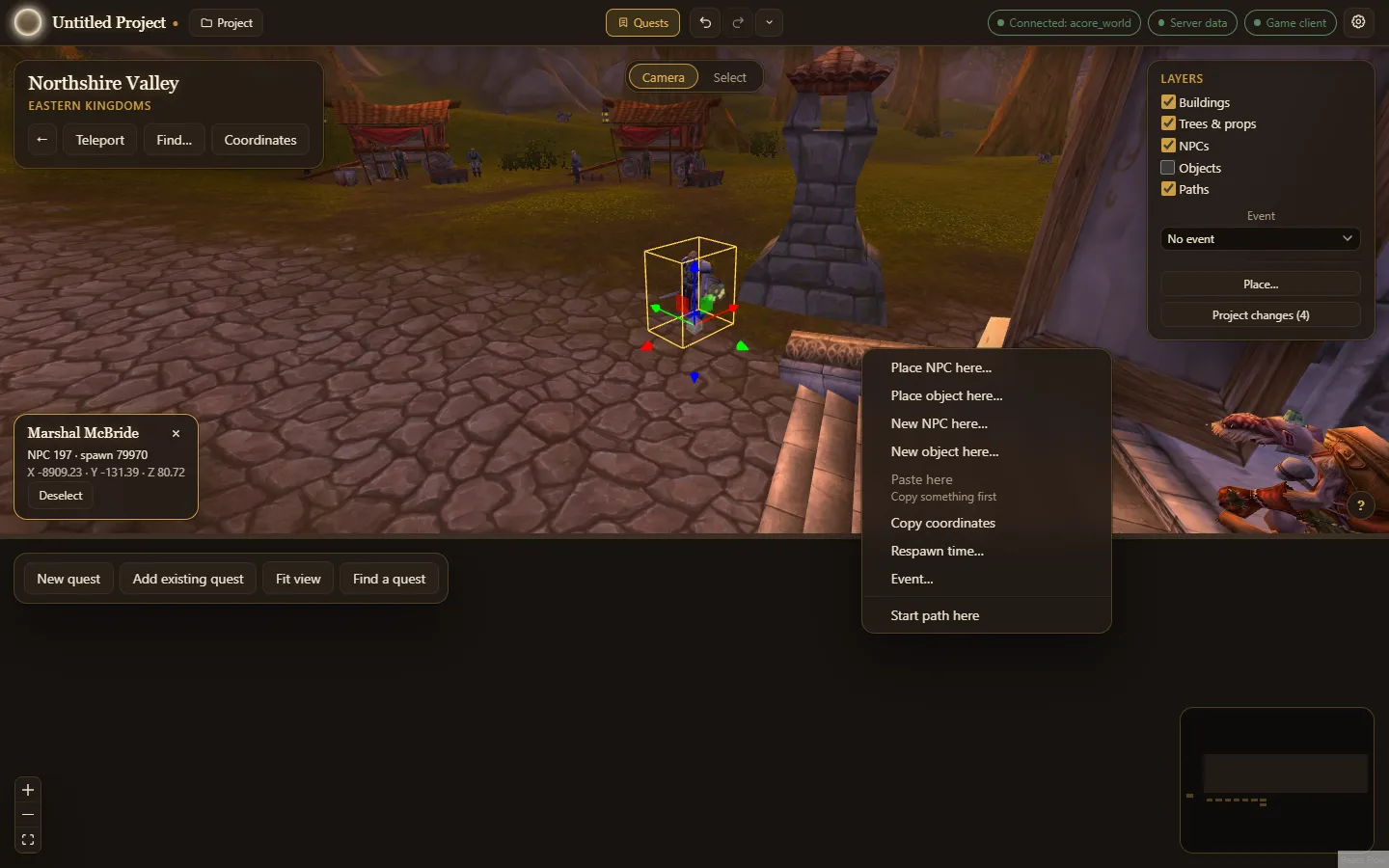
Section titled “The right-click menu”Right-click (without dragging) for a menu about what is under the cursor: a route point, an NPC or object, or the ground. An NPC or object you right-click is selected first. An item that cannot be used says why, such as Copy something first. The ContextMenu key and Shift+F10 open it too.
Place, copy and paste
Section titled “Place, copy and paste”- Place NPC here… and Place object here…: pick an existing NPC or object, and one is put down where you right-clicked, facing you, on the server’s floor. Place… in the Layers card places one with each click instead, until Esc. You can also drag an NPC or object from the open quest’s card in the Quests dock and drop it on the ground (one already in the world is marked Placed there). One of the project’s own NPCs or objects gets a new spawn of its own, even before the database has it.
- Copy, Paste here and Duplicate (also Ctrl+C, Ctrl+V and Ctrl+D): a copied group keeps its layout and facing. Ctrl+V pastes under the cursor, and Duplicate puts the copy beside the original. A paste copies what a spawn is, how it faces, its respawn time, how far it wanders and an NPC’s own game events. It does not copy a path: a pasted NPC that walked a path stands still, and you draw it a new one.
- Respawn time…: how long a spawn takes to come back after it dies or is despawned, in minutes and seconds. It starts from the spawn’s current time. With several spawns selected the item reads Respawn time of n spawns… and sets them all; if they differ the boxes start empty. It works on any spawn, a new one, one you placed, or one the database already has.
- Event…: which game events NPC spawns follow of their own: Same as the NPC, Always, Only during… or Gone during… one or more events. For one spawn the dialog first says what it follows now, including a spawn the database has both appearing during some events and gone during others, which is kept unless you choose something else. With several NPCs selected the item reads Event of n spawns…; if they differ nothing is chosen at first. Objects are left out. The NPC’s own setting is in the NPC editor.
- Remove: takes away a spawn you placed. Spawns already in the database are not deleted.
- Copy coordinates: puts
.go xyzwith the place’s X, Y, Z and map on the clipboard, ready to paste in game.
Placing, pasting and removing are undone with Ctrl+Z like any other change.
How an NPC moves
Section titled “How an NPC moves”- Start path here: with one NPC selected that has no route, right-click the ground where its path should begin. Each click then adds the next point. Enter or Esc finishes, Ctrl+Z takes back the last point, and Cancel path puts everything back. A path needs at least two points.
- Change wander distance…: how far the NPC roams from where it stands, 0 to 100 yards. Its circle follows what you type.
- Remove path: the NPC stands still. A path the database already has is left in place for any other NPC that walks it.
- Point settings… (right-click a point of a shown route): what the NPC does there. On a route the database has: how long it waits, whether it walks or runs on from there, and the way it faces; a waypoint script the point already runs is named and kept. On your own NPC’s patrol: the same, plus its actions (saying a line, an emote, a pose, a spell, a sound, mounting, using an object by its spawn guid); see patrols. Apply is one undo step.
These work for any NPC, whether the database has it or you made it.
Your quest
Section titled “Your quest”Right-click an NPC or object and open Quests:
- With a quest open, Set as quest giver, Set as quest ender and Add as kill objective (Add as use objective for an object) give it that part in the quest. When it already has the part, the item reads Remove as… and takes it away. See quest givers and enders.
- On an NPC, Start a new quest from this NPC makes a quest it gives and takes back. With a quest open, Start the next quest in this chain does the same and puts the new quest after the open one.
On the ground, with a quest open:
- Show quest spawns and Show chain spawns ring every spawn the quest (or its whole chain) uses and list them in the Find dialog by quest and part, so you can jump to any of them. Hide quest spawns takes the rings away.
New NPCs and objects
Section titled “New NPCs and objects”- New NPC here… and New object here… make a new NPC or object for the project, with a spawn where you right-clicked, and open its editor. No quest needs to be open.
- On any NPC or object, Edit NPC… or Edit object… opens its editor. For one the database already has this needs the world database connected; see Change an NPC or object that already exists.
- On an object, Make lootable… turns it into a chest and opens its loot. Stop being lootable turns it back.
Your own NPCs from their editor
Section titled “Your own NPCs from their editor”The editors work in the World too. On a giver card, or under Placement in an NPC or object editor:
- Place in world steps the editor aside and places the NPC or object with each click on the ground, as Place… does. Done or Esc brings the editor back where it was.
- Show in World beside a spawn steps the editor aside, takes the camera to that spawn and selects it. Done brings the editor back.
- Draw patrol (or Edit patrol) goes to the spawn and starts its path; Enter finishes it and brings the editor back. See patrols.
Without a game client these are not offered.
The quest’s positions
Section titled “The quest’s positions”While a quest is open, the World marks the places its scripts and fights use, each with a coloured pin and its name:
- the place of a scene’s Move to, Spawn an NPC or Spawn an object step (green),
- each point of an Escort path (blue),
- where a fight’s Summon adds puts them (red),
- an Enter an area scene’s area, with a ring at its radius (purple),
- the quest’s POI outline from the map marker tables, drawn on the ground (orange; shown, not moved here).
Click a pin to select it: a card names it, says what kind it is and where it is. Drag its handles to move it; let go along the ground and it lands on the server’s floor there, as a moved spawn does. Each move is one undo step. Esc or Deselect lets it go. A position whose NPC has no spawn yet has no known map; it is drawn on the map you are on, and its card says so.
In the quest editor, Show in World beside one of these positions steps the editor aside, takes the camera to it and selects it. Done brings the editor back. Without a game client it is not offered. Closing the quest takes its pins away.
An NPC or object is the project’s, and a quest uses it by naming it. The project’s NPCs and objects are drawn and edited in the World whether or not a quest is open. A move, or a path you give one, stays with the NPC, whichever quest uses it.
Spawn groups
Section titled “Spawn groups”Select two or more spawns and choose Group these spawns… to make a spawn group: only some of them are up at a time. On a spawn that is already in a group, Spawn group ▸ holds Edit group…, Show group and Remove from group. Selecting a pooled spawn rings the rest of its group, and the card lists each member’s chance. In Find…, the Spawn group option searches groups by name.
Project changes
Section titled “Project changes”Project changes (n) in the Layers card lists everything the project adds to or changes in the world database, outside its quests.
First comes the project’s list of NPCs, objects and items: every one you made, and every existing one you changed. Each row says what changed, which quests use it and how many spawns it has. Edit opens its editor, and Go to takes the camera to its spawn. The summary is one or more of:
- New: you made it.
- Spawns changed: you moved, turned, placed or changed the respawn time of one of its spawns.
- Movement changed: how it moves changed, such as its wander distance.
- Path changed: a route it walks changed.
- Details changed: you edited the NPC, object or item itself.
- Group changed: one of its spawns joined, left or was changed in a spawn group.
The quest panel shows the same list; see NPCs and objects.
Then come changes to spawns already in the database: spawns moved or turned, respawn times, routes changed, spawns placed, NPCs’ movement and spawn groups, each with what it was before and after. Revert or Remove takes one back; a new path and the movement that walks it go back together.
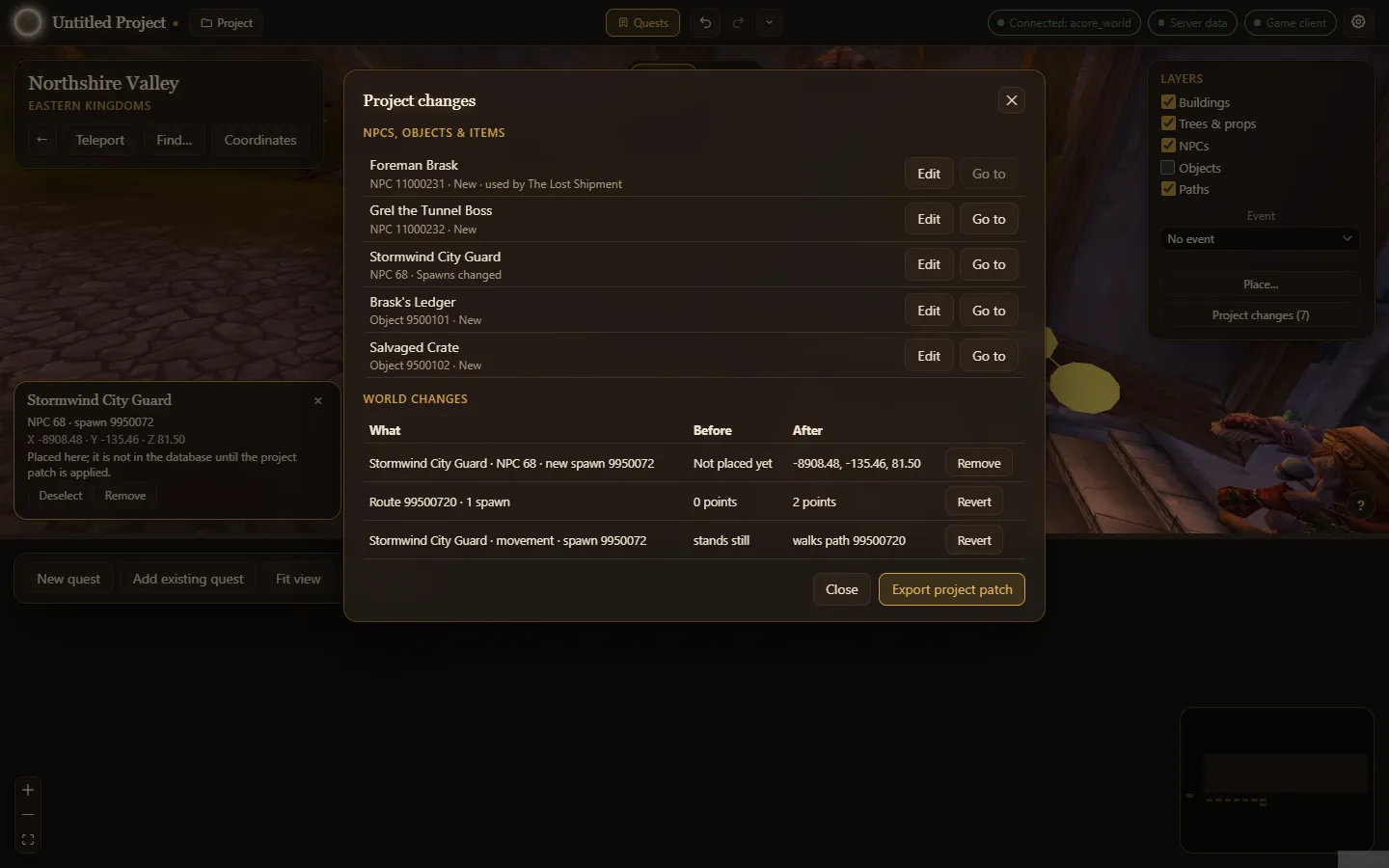
Export project patch writes all of it, and a patch that undoes it. If one of the new NPCs, objects or items has an error, it lists what to fix first. See exporting and applying.