

NPCs and objects
An NPC, object or item belongs to your project, not to one quest. A quest uses it by naming it: as its giver or ender, an objective, a reward, or in a script. It is the same NPC whether one quest uses it, several do, or none, and whether you made it or the database already had it.
A quest’s NPCs, objects & items module lists the project’s NPCs, objects and items in two parts. Used by this quest comes first: the ones this quest names. Others in the project lists the rest. Each row says what changed (New, Spawns changed, Movement changed, Path changed, Details changed, Group changed) and which quests use it. The module appears as soon as the project has any. Making a new NPC from the Quest Giver module adds it to the quest for you.
- Add NPC, Add object and Add item make a new one for the project and open its editor.
- Add from project… lists the project’s NPCs, objects and items, and gives the one you pick a part in this quest.
- Edit on a listed row opens it. The row says which other quests use it, so you know what a change affects.
A new NPC or object is in the project as soon as you add it, and every change is kept as you make it. Discard on a new one takes it away again. Deleting one tells you which quests use it, and takes it off their giver and ender cards. Like every change, both are undone with Ctrl+Z.
You can also make them straight in the World: right-click the ground and choose New NPC here… or New object here….
Change one that already exists
Section titled “Change one that already exists”You can edit an NPC, object or item the database already has. Open its editor from the right-click menu in the World (Edit NPC… or Edit object…), from its row in the entity list, or from a picker’s Edit… button, such as the one beside the giver. This needs the world database connected, since the editor reads the current values from it.
The editor is the same one a new NPC gets, with its title ending in (existing), such as NPC: Stormwind Guard (existing). The first edit adds the NPC to your project as one undo step, and the row in the entity list reads Details changed. Nothing in the database changes until you apply the project patch. The patch writes the NPC’s row with your changes laid over it, so everything the editor does not show stays as the database had it, and a revert patch puts the original rows back.
Put back as the database has it (where a new NPC has Discard) takes your changes away and removes the NPC from the project’s list. It is one undo step too.
Before a change that reaches further than this one NPC, the editor says so:
- On scale, and the NPC’s other details, when it has more than one spawn: the warning names how many spawns the change affects.
- On the Loot tab, when other NPCs share the same loot list: the warning names how many.
Some parts are read-only, with a line saying why:
- Fight, when the database already scripts the NPC (a scripted fight). Nothing you could set here would take effect.
- Loot, when the loot list has references to other lists or groups.
- An object whose type the editor does not have.
An existing NPC’s spawns are not in the editor. Change them in the World: move them, set their respawn time, wander and paths.
If the database has changed the NPC’s rows since you first edited it, Project changes says so, so check before you apply the patch: applying it overwrites those changes.
The NPC editor
Section titled “The NPC editor”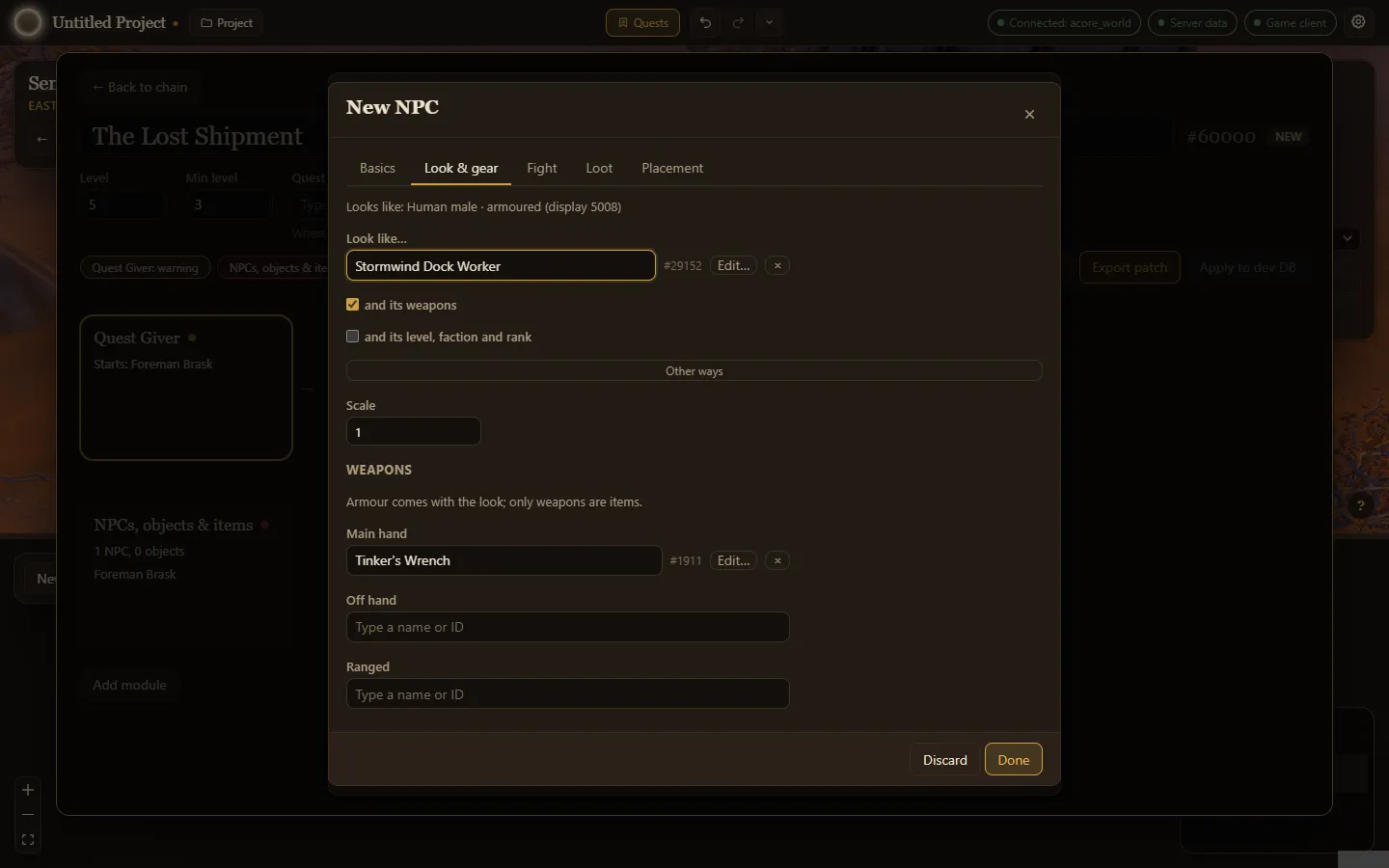
The editor has tabs:
- Basics: name, title (the line under the name), minimum and maximum level, and faction. Faction buttons such as Stormwind set a common one in a click. Under Visibility, set who sees it and when it is in the world (see Visibility below).
- Look & gear: how the NPC looks. Type a creature under Look like… to borrow its appearance. Tick and its weapons to borrow its weapons too, or and its level, faction and rank to borrow those. Other ways lets you browse models by name or type a display ID. Scale makes it bigger or smaller. Under Weapons you can pick main hand, off hand and ranged items yourself; armour always comes with the look.
- Fight: how it fights. See the combat wizard.
- Loot: what it drops. See Loot.
- Placement: where it stands. Add spawn and paste the output of the in-game
.gpscommand, or choose Place in world to put it down in the World. Each spawn has its own Event, which starts as Same as the NPC.
Visibility
Section titled “Visibility”- Seen by: Living players (the default), Dead players only, or Living and dead players. A spirit healer is seen only by dead players. This is part of the NPC itself, so it applies to every spawn of that NPC. A spirit healer or spirit guide in the database is always dead-only, and the choice is locked.
- Event: when its spawns are in the world. Always, Only during… or Gone during…, then pick one or more game events by name. A spawn that follows several events is there while any of them runs (or gone while any of them runs). Every spawn follows this unless it has its own event, set on the Placement tab or with Event… in the 3D view’s right-click menu. For an NPC the database already has whose spawns follow different events, As each spawn has it leaves them as they are.
An NPC that gives quests but is seen only by dead players gets a warning, since living players could not take or hand in its quests. The export warns when an event is not in the database, and when a spawn follows events of its own while also in a spawn group that follows an event, since the server applies both.
The object editor
Section titled “The object editor”Objects have Basics, Look, Placement, and for some types Contents. On Basics, pick the Type:
| Type | What it is |
|---|---|
| Usable object | Something the player clicks, such as a lever or a quest item on the ground. Can show pages of text. |
| Lootable | Something the player loots, such as a chest. Its Contents tab holds its loot. |
| Quest giver | An object that offers or takes back quests, such as a wanted poster. |
| Readable | A book, note or plaque. See Readable objects. |
| Decoration | Scenery with nothing to use. |
Usable and lootable objects can be Only usable while this quest is in the log.
On Look, Other ways lets you Browse models by name, such as chest or book.