

Your first quest
This walkthrough builds a small quest, The Lost Shipment: a dockmaster asks the player to deal with a kobold and bring back some cloth. It takes about ten minutes.
-
Start a quest. On the canvas, choose New quest. The quest opens straight away. Give it a Quest title, a Level and a Min level.
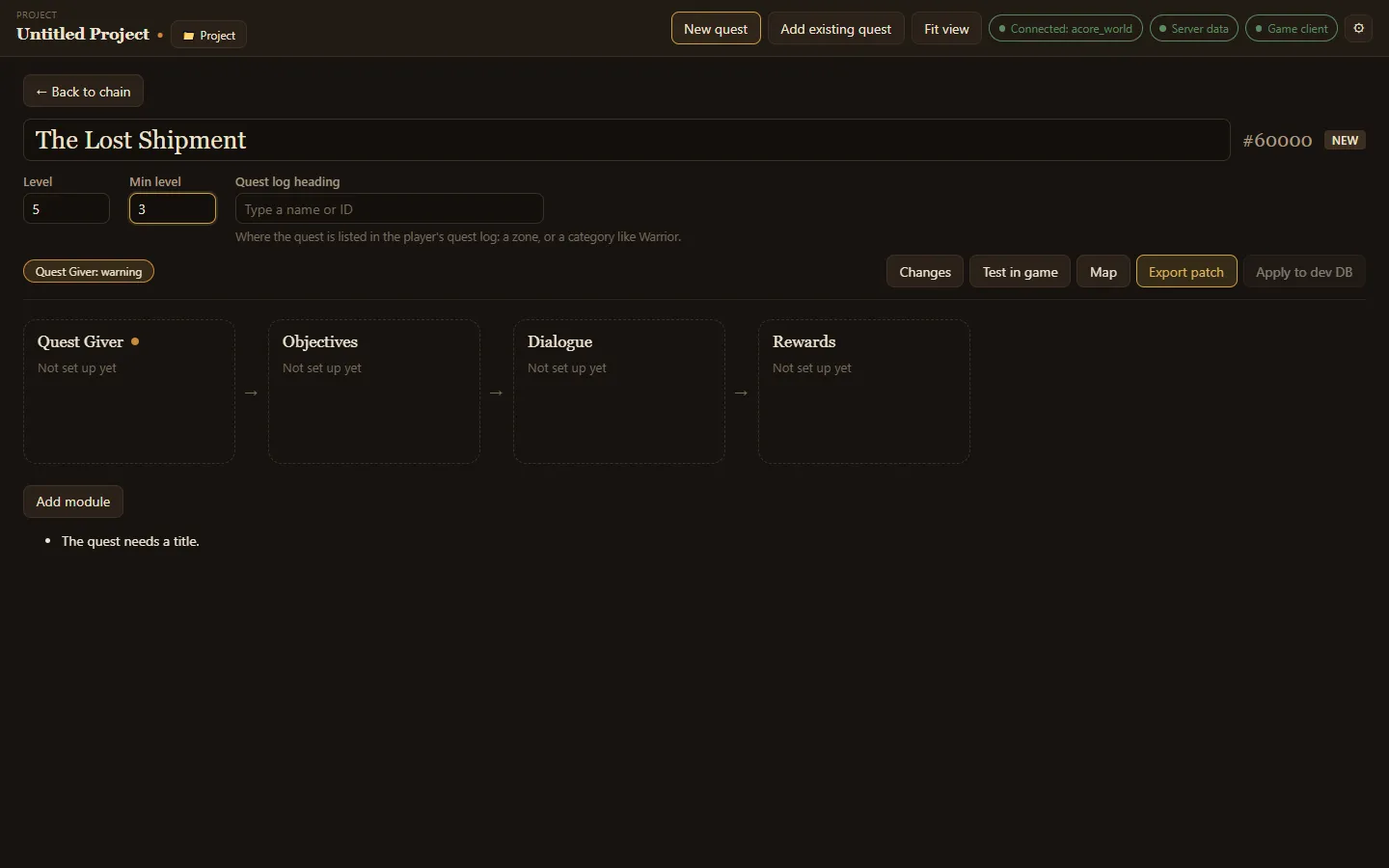
Below the title are the quest’s modules: Quest Giver, Objectives, Dialogue, Rewards and more. Each card opens its own editor.
-
Give it a quest giver. Open Quest Giver and choose Add quest giver. Pick an NPC that already exists by typing its name, or choose New NPC to make one. For a new NPC, give it a name, then on Look & gear type a creature under Look like… to borrow its appearance.
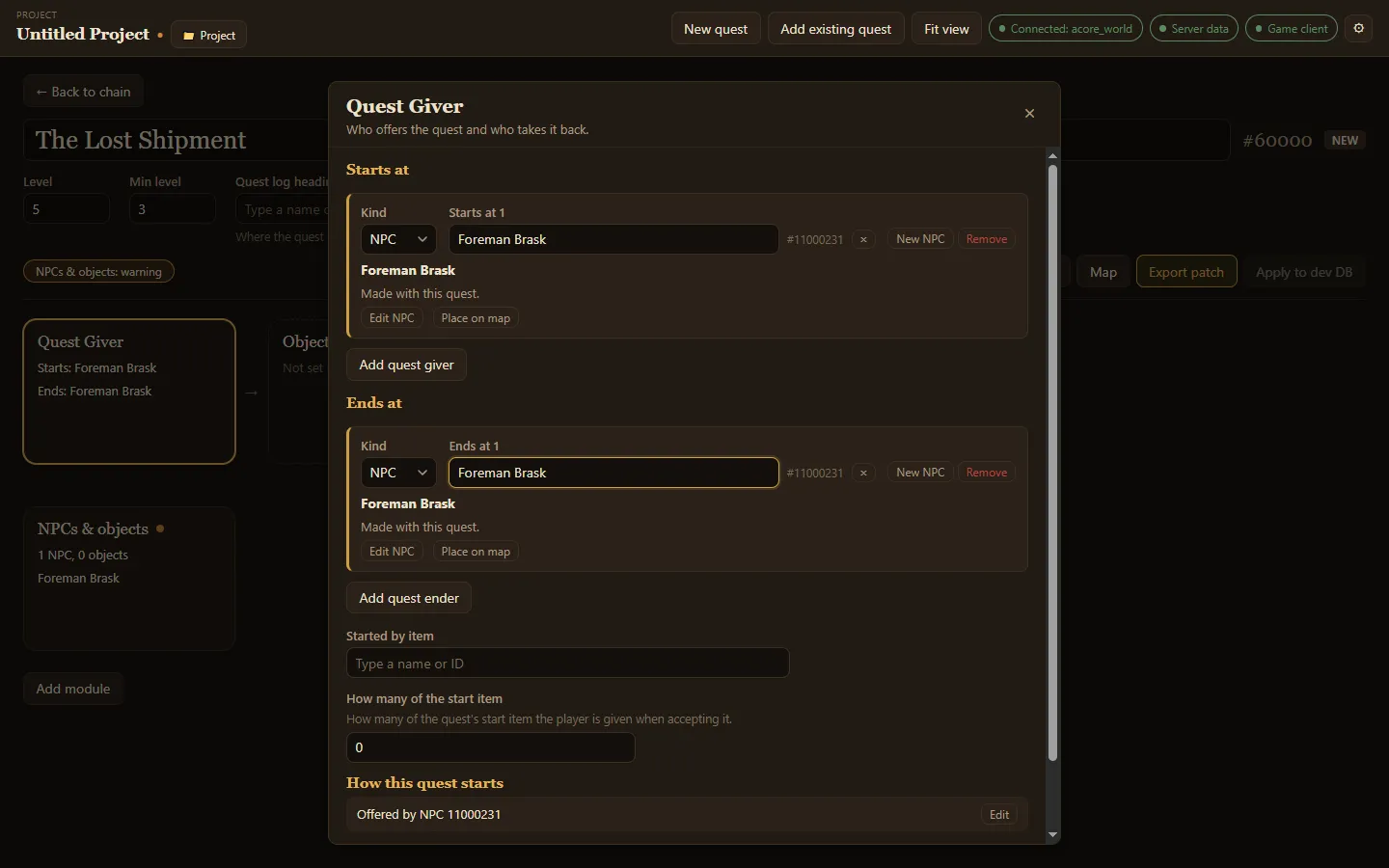
Add a quest ender the same way: the NPC the player hands the quest in to. Then choose Place on map to put your NPC in the world; see Quest map.
-
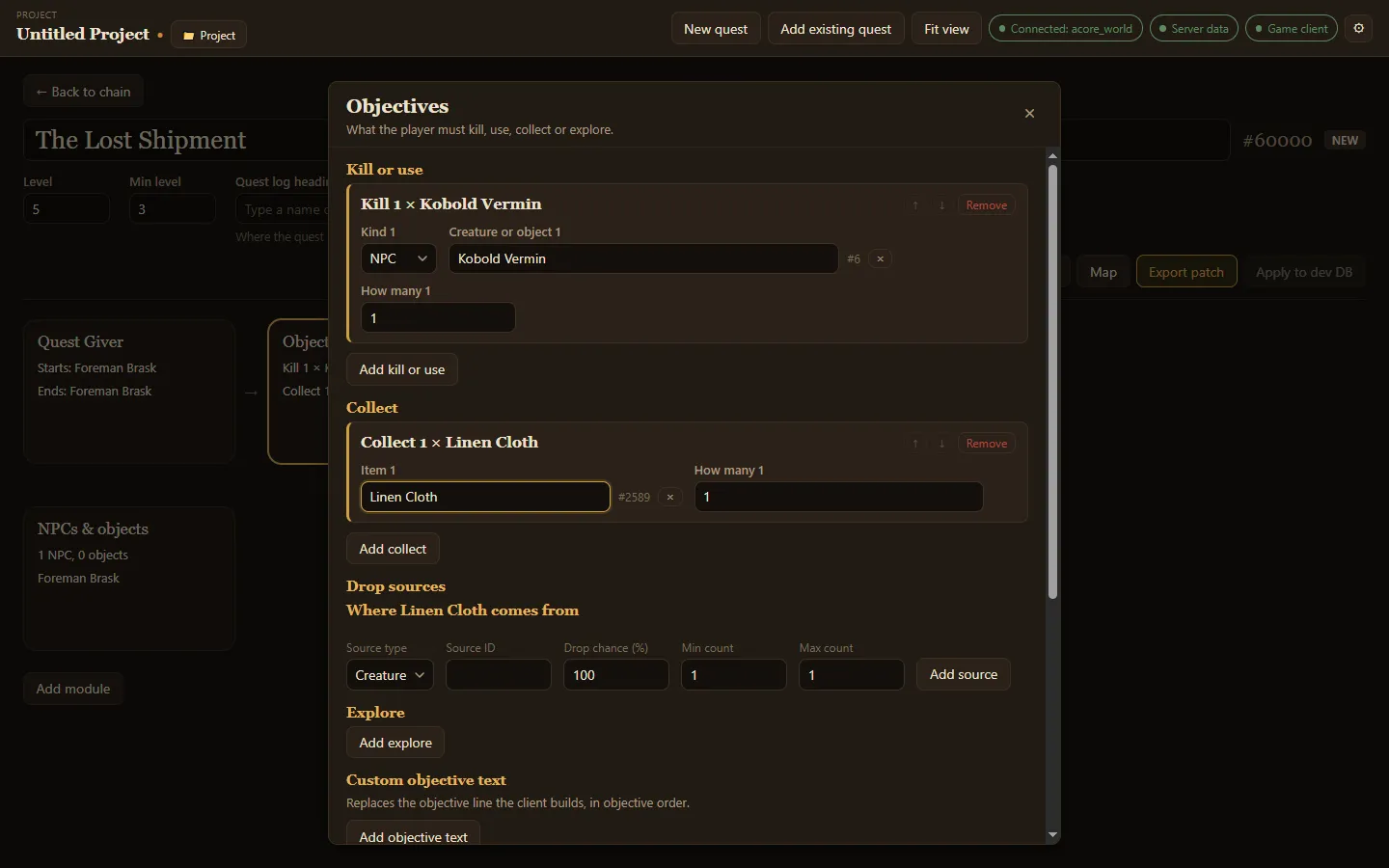
Say what the player must do. Open Objectives. Add kill or use asks for a creature or object; Add collect asks for an item.
-
Fill in the rest. Write the quest’s text in Dialogue and pick its Rewards. Add a Scripts module if something should happen around the quest, such as the giver speaking when the player accepts it. Each module has its own page under Guides.
-
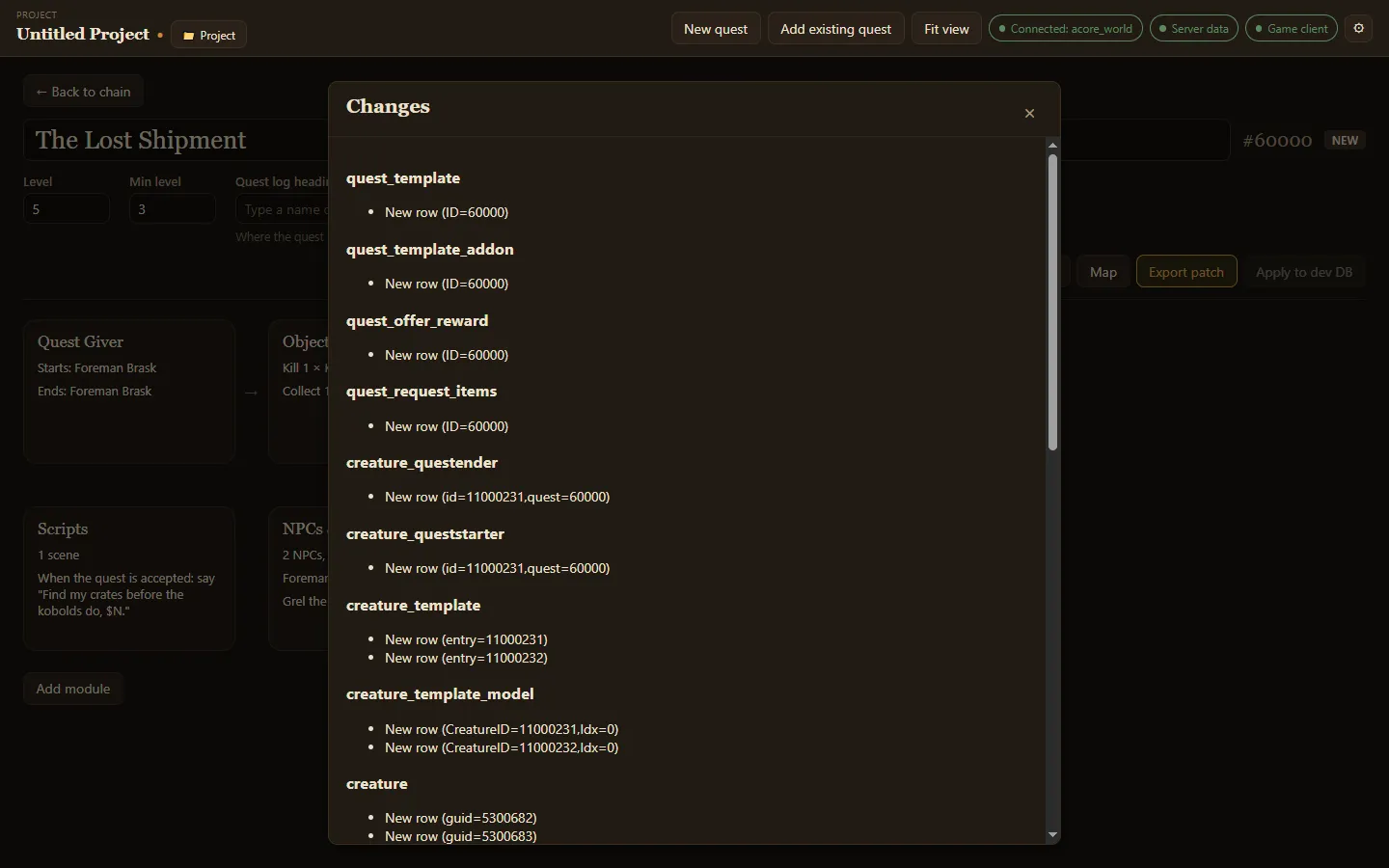
Check the changes. Choose Changes to see every database row the quest adds or changes.
-
Export it. Choose Export patch to write the quest as an
.sqlfile; the app shows where it saved it. Or, with a dev database in Settings, choose Apply to dev DB to write it straight to your test server. -
Try it. Choose Test in game for the commands that reload and try the quest on your test server. See Test in game.
Save your project
Section titled “Save your project”Your quests live in a project. Choose Project in the top bar to save it as an .aqc file, open another one or start a new one. See Projects and the quest canvas.