

Settings and connection profiles
Choose ⚙ in the top bar to open Settings. It holds the same fields as the login screen.
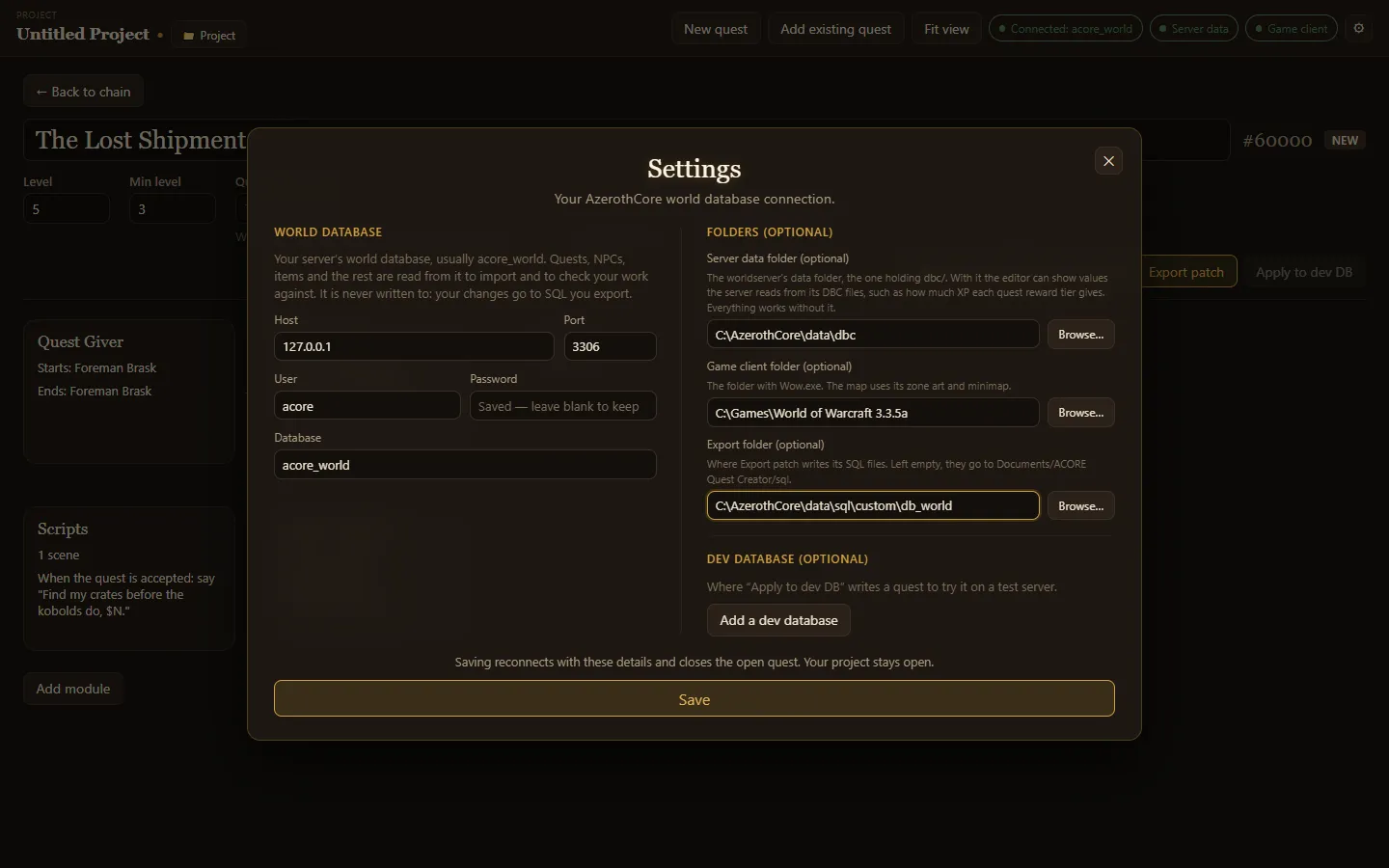
World database
Section titled “World database”| Setting | Meaning |
|---|---|
| Host | The MySQL server, such as 127.0.0.1. |
| Port | The MySQL port, usually 3306. |
| User | A MySQL user that can read the world database. |
| Password | That user’s password. Stored encrypted; leave blank to keep the saved one. |
| Database | The world database, usually acore_world. |
The world database is only ever read.
Folders
Section titled “Folders”| Setting | Meaning |
|---|---|
| Server data folder | The worldserver’s data folder, the one holding dbc/. Adds XP values, name search for spells and models, ground height and floors on the map. |
| Game client folder | The folder with Wow.exe. Adds zone art and the minimap to the quest map. |
| Export folder | Where Export patch writes SQL files. Empty: Documents/ACORE Quest Creator/sql. |
All three are optional.
Dev database
Section titled “Dev database”Add a dev database asks for a second host, port, user, password and database: a test server’s world database that Apply to dev DB writes to. Remove dev database turns it off again.
Saving
Section titled “Saving”Save reconnects with the new details. It closes the open quest; your project stays open. If the connection fails, the error shows in the dialog and the app stays connected with the old details.
Where the app keeps its data
Section titled “Where the app keeps its data”Connection details, recent projects, recovery copies and cached map tiles live in the app’s data folder:
| System | Folder |
|---|---|
| Windows | %APPDATA%\acore-quest-creator |
| macOS | ~/Library/Application Support/acore-quest-creator |
| Linux | ~/.config/acore-quest-creator |
Exported SQL patches go to the Export folder, or Documents/ACORE Quest Creator/sql when none is set. Projects are saved wherever you choose, as .aqc files.